
Vector Search for Beginners: Using pgvector with .NET Aspire
Learn how to build a powerful semantic vector search engine using PostgreSQL, pgvector, local machine learning models, and .NET Aspire without needing a dedicated vector database.
Have you ever typed a search query into an application and received zero results, simply because you used a synonym? It is incredibly frustrating. You might search for "authentication tutorial" and the database returns absolutely nothing because the author titled their article "User Login Guide".
Traditional relational databases are painfully literal. When you use a standard SQL LIKE query, the database looks for the exact sequence of letters you typed. It does not understand human intent. It does not comprehend that "authentication", "login", and "identity verification" are related concepts. This literal translation is fine for looking up a specific order number, but it falls completely flat when you are trying to build an intuitive search experience for your users.
This exact limitation is why the software industry has rapidly adopted a new approach. We are moving away from searching by letters and moving toward searching by meaning. This concept is called vector search, and it is completely changing how developers build modern applications.
In this comprehensive guide, we will explore what vector search actually is. We will break down the underlying concepts into simple terms. Then, we will get our hands dirty with real code. We will build a complete semantic search solution using PostgreSQL, the pgvector extension, local machine learning models, and .NET Aspire.
What is Vector Search and What is an Embedding?
Before we look at any code, we need to understand how we can possibly teach a computer the "meaning" of a word. Computers only understand numbers. Therefore, we have to translate our text into numbers in a way that captures the underlying concepts. This process creates something called an embedding.
An embedding is simply a long array of numbers. You can think of it like a set of GPS coordinates for an idea.
Let us use a real-world analogy. Imagine you have a giant map spread out on a table. On this map, you decide to place different types of food. You place a "hamburger" and a "hot dog" very close to each other on the left side of the map because they are both fast food. You place "apple" and "banana" close to each other on the right side of the map because they are both fruits.
If someone asks you to find something similar to a hamburger, you look at the coordinate for the hamburger on your map. You then look at whatever item is physically closest to that coordinate. You would immediately see the hot dog. You would not suggest the banana because it is located far away on the opposite side of the map.
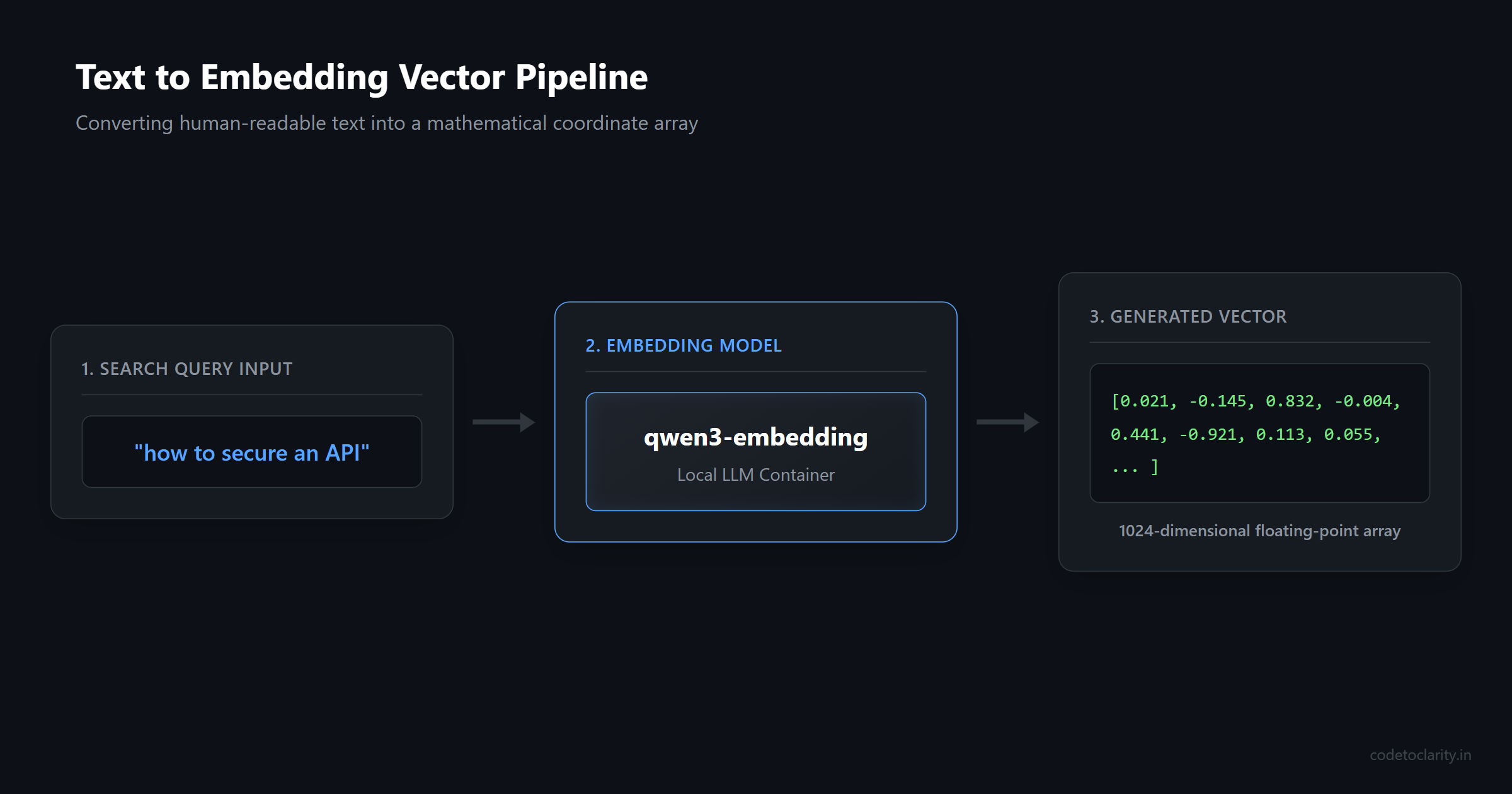
Machine learning models do this exact same thing with language. When you feed a sentence into an embedding model, the model analyzes the context and outputs a long list of numbers. These numbers represent the coordinates of that sentence in a massive, multi-dimensional space. Sentences with similar meanings will have coordinates that are mathematically close to each other. Sentences with entirely different meanings will be far apart.
Vector search is the process of taking a user's search query, turning it into its own set of coordinates, and asking the database to find the rows that are closest to those coordinates. It is pure math replacing keyword matching.
Real-World Scenarios for Vector Search
You might be wondering when you would actually use this technology in your day-to-day work as a developer. The applications are incredibly widespread.
Semantic Search: This is the most direct application. You can upgrade your website search bar to find results based on the meaning of the query rather than relying on strict keyword matches. This drastically improves the user experience.
Retrieval-Augmented Generation (RAG): If you are building AI applications, you have likely heard of RAG. Large Language Models have a cut-off date for their training data. If you want an AI to answer questions about your private company documents, you have to feed those documents to the AI first. You use vector search to find the most relevant paragraphs from your private data and pass them to the AI to generate a grounded, accurate answer.
Recommendation Engines: You can create embeddings for user behavior or product descriptions. When a user views a specific product, you can perform a vector search to find and recommend the most mathematically similar products in your catalog.
Deduplication: You can use embeddings to clean up messy data. By comparing the vectors of different database records, you can easily identify entries that are near-duplicates even if the text is not a perfect match.
Why PostgreSQL and pgvector?
When developers first learn about vector search, they often assume they need to learn and deploy a brand new, specialized vector database. There are many standalone vector databases on the market today. However, adding a completely new database technology to your technology stack introduces massive complexity. You have to handle data synchronization, learn new backup procedures, and manage additional infrastructure.
There is a much better way. If you are already using PostgreSQL for your relational data, you can stay right there.
PostgreSQL has an incredible open-source extension called pgvector. This extension adds native support for storing arrays of numbers and performing mathematical similarity searches directly inside your existing database. You can store your standard relational data right alongside your vectors. You can even join your vector searches with traditional SQL filters. It is the best of both worlds.
Simplifying Infrastructure with .NET Aspire
Setting up PostgreSQL, installing extensions, and configuring local machine learning models used to require writing lengthy configuration scripts. It was a tedious process that distracted you from writing your actual application code.
Microsoft solved this problem beautifully with .NET Aspire. It is a cloud-ready stack for building observable, distributed applications. .NET Aspire allows you to define your infrastructure entirely in C# code. It handles spinning up containers, wiring up connection strings, and managing dependencies automatically.
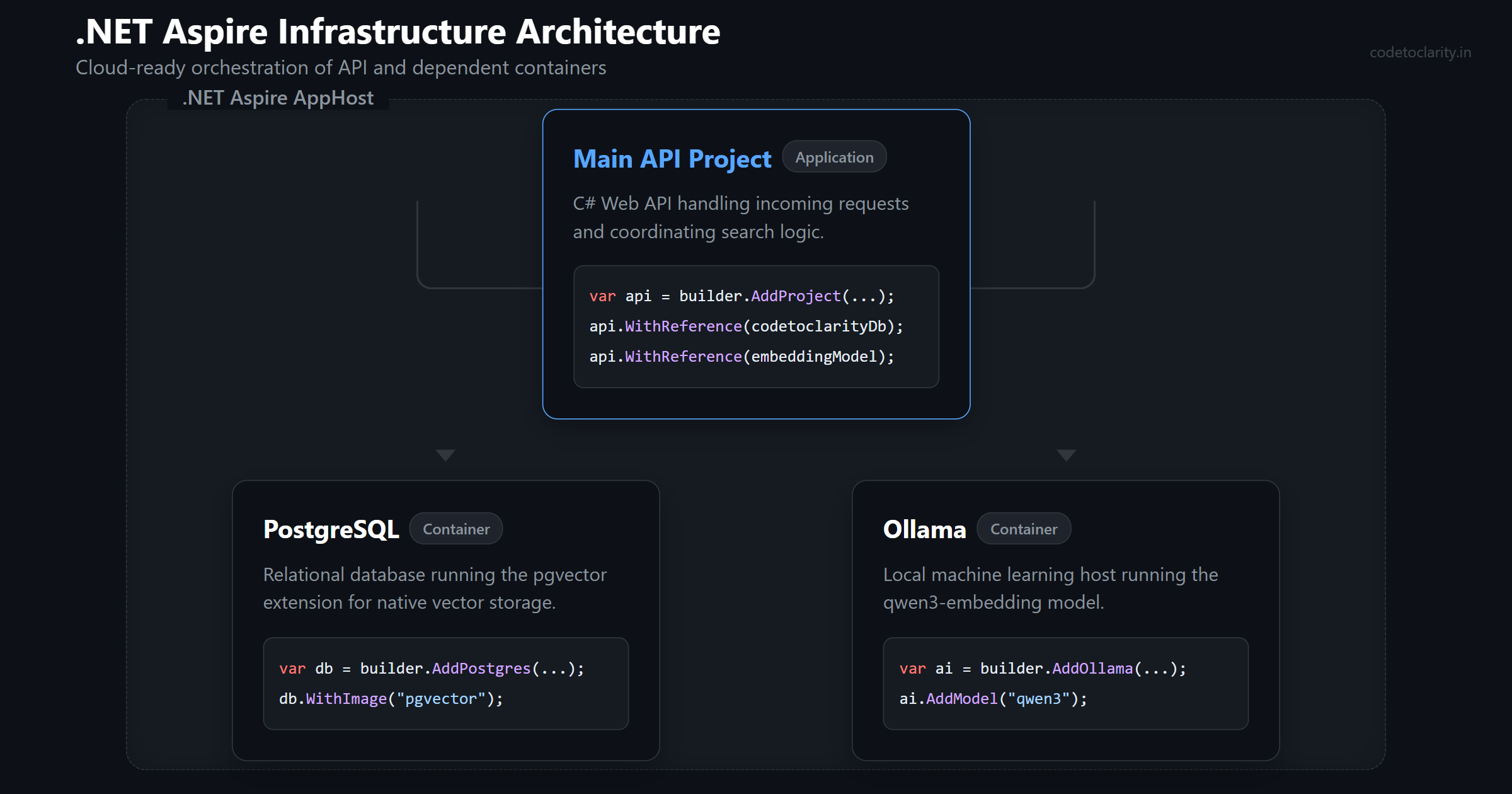
For our project, we are going to use .NET Aspire to provision a PostgreSQL database with pgvector pre-installed. We are also going to provision an Ollama instance. Ollama is a fantastic tool that allows you to run large language models and embedding models locally on your own machine. This means we do not need to pay for external API keys just to experiment with semantic search.
Step 1: Setting Up the Infrastructure Project
Let us look at the code required to orchestrate our environment. In your .NET Aspire AppHost project, you will write a setup that looks like this.
var builder = DistributedApplication.CreateBuilder(args);

// Provision a local Ollama container
var codetoclarityOllama = builder.AddOllama("ollama")
    .WithLifetime(ContainerLifetime.Persistent)
    .WithDataVolume();

// Download and run a specific embedding model
var embeddingModel = codetoclarityOllama.AddModel("qwen3-embedding:0.6b");

// Provision PostgreSQL with the pgvector extension included
var codetoclarityDb = builder.AddPostgres("postgres")
    .WithLifetime(ContainerLifetime.Persistent)
    .WithImage("pgvector/pgvector", "pg17")
    .AddDatabase("articles");

// Wire everything up to our main API project
builder.AddProject<Projects.CodeToClarity_Api>("api")
    .WithReference(embeddingModel)
    .WithReference(codetoclarityDb)
    .WaitFor(embeddingModel)
    .WaitFor(codetoclarityDb);

builder.Build().Run();
This code is wonderfully readable. We define an Ollama resource and tell it to load a lightweight embedding model named qwen3-embedding. We define our PostgreSQL database and specifically request the pgvector Docker image.
The WithLifetime(ContainerLifetime.Persistent) command is crucial for a smooth developer experience. It ensures that your containers are not destroyed every time you restart your debugging session. Your data will survive between runs. Finally, the WaitFor method guarantees that our API will not start until both the database and the machine learning model are fully operational and ready to accept requests.
Step 2: Configuring the API and Dependencies
Now we move over to our actual API project. We need to install a few specific libraries to make the magic happen. You will need to add these packages to your project:
Aspire.NpgsqlPgvector.DapperCommunityToolkit.Aspire.OllamaSharp
We will be using Dapper for our database interactions because it is incredibly fast and gives us full control over our SQL queries. The Pgvector.Dapper NuGet package provides a custom type handler so Dapper knows exactly how to map C# objects to the PostgreSQL vector format.
Let us configure our Program.cs file to register these services.
// Register the Ollama embedding generator
builder.AddOllamaApiClient("ollama-qwen3-embedding")
    .AddEmbeddingGenerator();

// Register the PostgreSQL connection with vector support enabled
builder.AddNpgsqlDataSource("articles", configureDataSourceBuilder: options =>
{
    options.UseVector();
});

// Teach Dapper how to handle the Vector object
SqlMapper.AddTypeHandler(new VectorTypeHandler());
Notice the AddEmbeddingGenerator() method call. This is part of the Microsoft.Extensions.AI abstraction layer. By relying on interfaces instead of concrete implementations, your application becomes incredibly flexible. If you decide to move your application to the cloud later and want to swap out your local Ollama model for Azure OpenAI, you only have to change this single registration line. The rest of your application code will remain completely untouched.
Step 3: Initializing the Vector Database and HNSW Index
Before we can store anything, we need to prepare our database schema. We have to explicitly enable the pgvector extension and create our table.
app.MapPost("/setup", async (NpgsqlDataSource dataSource) =>
{
    await using var connection = await dataSource.OpenConnectionAsync();

    // Enable the extension
    await connection.ExecuteAsync("CREATE EXTENSION IF NOT EXISTS vector");

    // Refresh type caches so Npgsql recognizes the new data types
    connection.ReloadTypes();

    // Create the table with a vector column
    await connection.ExecuteAsync(
        """
        CREATE TABLE IF NOT EXISTS CodeToClarityArticles (
            Id SERIAL PRIMARY KEY,
            Title TEXT NOT NULL,
            Content TEXT NOT NULL,
            Embedding vector(1024) NOT NULL
        )
        """);

    // Create an index for extremely fast lookups
    await connection.ExecuteAsync(
        """
        CREATE INDEX IF NOT EXISTS embedding_idx
        ON CodeToClarityArticles USING hnsw (Embedding vector_cosine_ops)
        """);

    return Results.Ok("Database initialized successfully.");
});
There are two critical details in this snippet that you must understand.
First, look at vector(1024). When you define a vector column, you must specify the exact number of dimensions it will hold. This number must perfectly match the output size of the machine learning model you are using. The qwen3-embedding model generates an array of exactly 1024 numbers. If you change your model in the future, you will likely need to adjust this dimension size.
Second, look at the CREATE INDEX command. We are using something called an hnsw index. HNSW stands for Hierarchical Navigable Small World. If you do not use an index, the database will have to compare your search query against every single row in the table to find the closest match. That approach is acceptable for a few hundred rows, but it becomes cripplingly slow as your dataset grows.
HNSW solves this by building a graph-based structure. Think of it like a highway system. Instead of driving down every single local road to find your destination, HNSW allows the database to take high-speed highways to get close to the target area immediately, and then only explores the local roads in that specific vicinity. It provides incredibly fast, approximate nearest-neighbor searches. You can read more about the technical implementation details in the official pgvector GitHub repository.
Step 4: Generating and Storing Data
Now that our infrastructure is completely prepared, we can start importing data. We will read a list of articles, generate an embedding for each article's content, and save everything to PostgreSQL.
app.MapPost("/import", async (
    ICodeToClarityService codetoclarityService,
    IEmbeddingGenerator<string, Embedding<float>> generator,
    NpgsqlDataSource dataSource) =>
{
    await using var connection = await dataSource.OpenConnectionAsync();
    connection.ReloadTypes();

    var articles = await codetoclarityService.GetArticlesAsync();

    foreach (var article in articles)
    {
        // Ask the model to convert our text into numbers
        var generatedEmbedding = await generator.GenerateAsync(article.Content);

        // Wrap the numbers in the Pgvector custom type
        var vector = new Vector(generatedEmbedding.Vector.ToArray());

        // Insert the data alongside the generated vector
        await connection.ExecuteAsync(
            "INSERT INTO CodeToClarityArticles (Title, Content, Embedding) VALUES (@Title, @Content, @Embedding)",
            new { article.Title, article.Content, Embedding = vector });
    }

    return Results.Ok("Articles and embeddings imported successfully.");
});
We iterate through our content and pass the text into the GenerateAsync method. The local Ollama container processes the text and returns an array of floating-point numbers. We wrap that array into a Pgvector.Vector object so that Dapper knows how to serialize it, and then we execute a standard SQL insert statement.
Your vector data now lives right next to your standard relational data.
Step 5: Performing the Similarity Search
This is the moment we have been building toward. A user submits a search query. We need to find the most relevant articles based purely on the semantic meaning of their search terms.
app.MapGet("/search", async (
    string queryText,
    IEmbeddingGenerator<string, Embedding<float>> generator,
    NpgsqlDataSource dataSource) =>
{
    // Step 1: Convert the user's search query into an embedding
    var queryEmbedding = await generator.GenerateAsync(queryText);
    var searchVector = new Vector(queryEmbedding.Vector.ToArray());

    await using var connection = await dataSource.OpenConnectionAsync();
    connection.ReloadTypes();

    // Step 2: Ask the database to find the closest vectors
    var results = await connection.QueryAsync<ArticleResult>(
        """
        SELECT Title, Content, Embedding <=> @SearchVector as Distance
        FROM CodeToClarityArticles
        ORDER BY Embedding <=> @SearchVector
        LIMIT 5
        """,
        new { SearchVector = searchVector });

    return Results.Ok(results);
});

public record ArticleResult(string Title, string Content, double Distance);
The process is remarkably straightforward. When the user searches for "how to secure an API", we first pass that exact phrase into the embedding model. This is a critical rule of vector search. You absolutely must embed your search queries using the exact same machine learning model that you used to generate the database records. Different models map ideas differently. If you mix models, your coordinate systems will not match and your search results will be random nonsense.
Once we have the vector for the search query, we pass it into our SQL statement using the <=> operator.
Understanding Distance Metrics (Cosine vs L2)
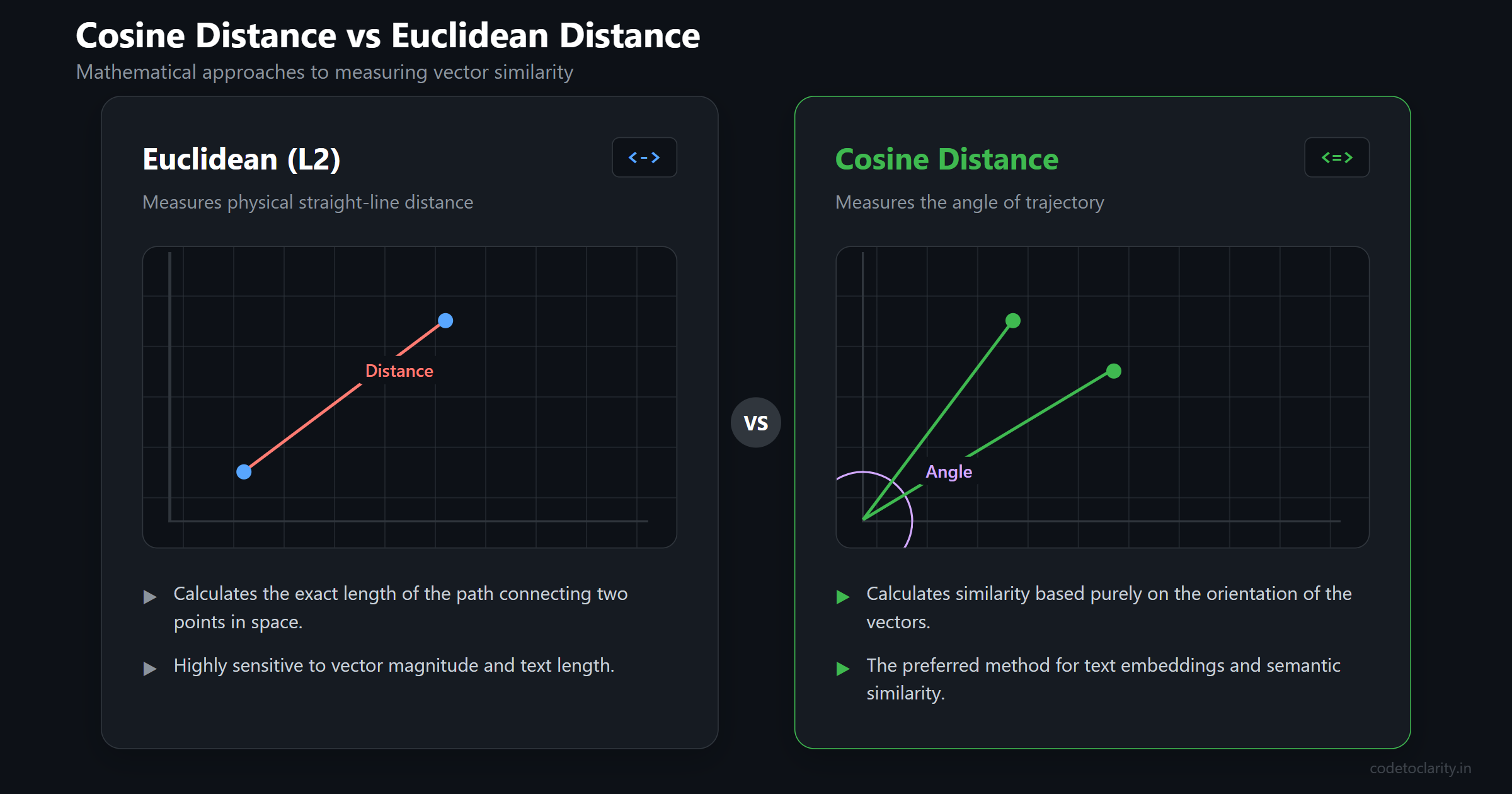
In the SQL query above, the <=> operator instructs PostgreSQL to calculate the Cosine Distance between our search vector and the vectors stored in the table.
There are different mathematical ways to measure the distance between two points in space. pgvector supports several operators:
<->calculates Euclidean Distance (also known as L2 distance). This measures the literal straight-line distance between two points.<=>calculates Cosine Distance. Instead of measuring the physical distance, this measures the angle between two vectors.
For text embeddings, Cosine Distance is almost always the preferred choice. It is much better at identifying similarity in meaning regardless of the length of the text. When you order your results by Cosine Distance in ascending order, the smallest numbers represent the closest semantic matches. The database retrieves the top 5 closest matches and returns them to the user.
Conclusion
You have successfully built a semantic search engine. You did not have to purchase expensive enterprise software. You did not have to introduce a complex new vector database into your architecture.
By leveraging the power of Microsoft's official .NET Aspire documentation and the incredible capabilities of the PostgreSQL pgvector extension, you can easily integrate cutting-edge AI features directly into your existing applications. You can finally stop forcing your users to guess the exact keywords your authors used. You can provide a search experience that actually understands what they mean.
The barrier to entry for building intelligent, context-aware applications has never been lower. It is time to upgrade your search boxes.

Kishan Kumar
Software Engineer / Tech Blogger
A passionate software engineer with experience in building scalable web applications and sharing knowledge through technical writing. Dedicated to continuous learning and community contribution.